

Quick Pair
This page starts after the Bridge is installed and Home Assistant has restarted. When finished, the matching Home Assistant Source in seenzus will show Connected.
Where to start
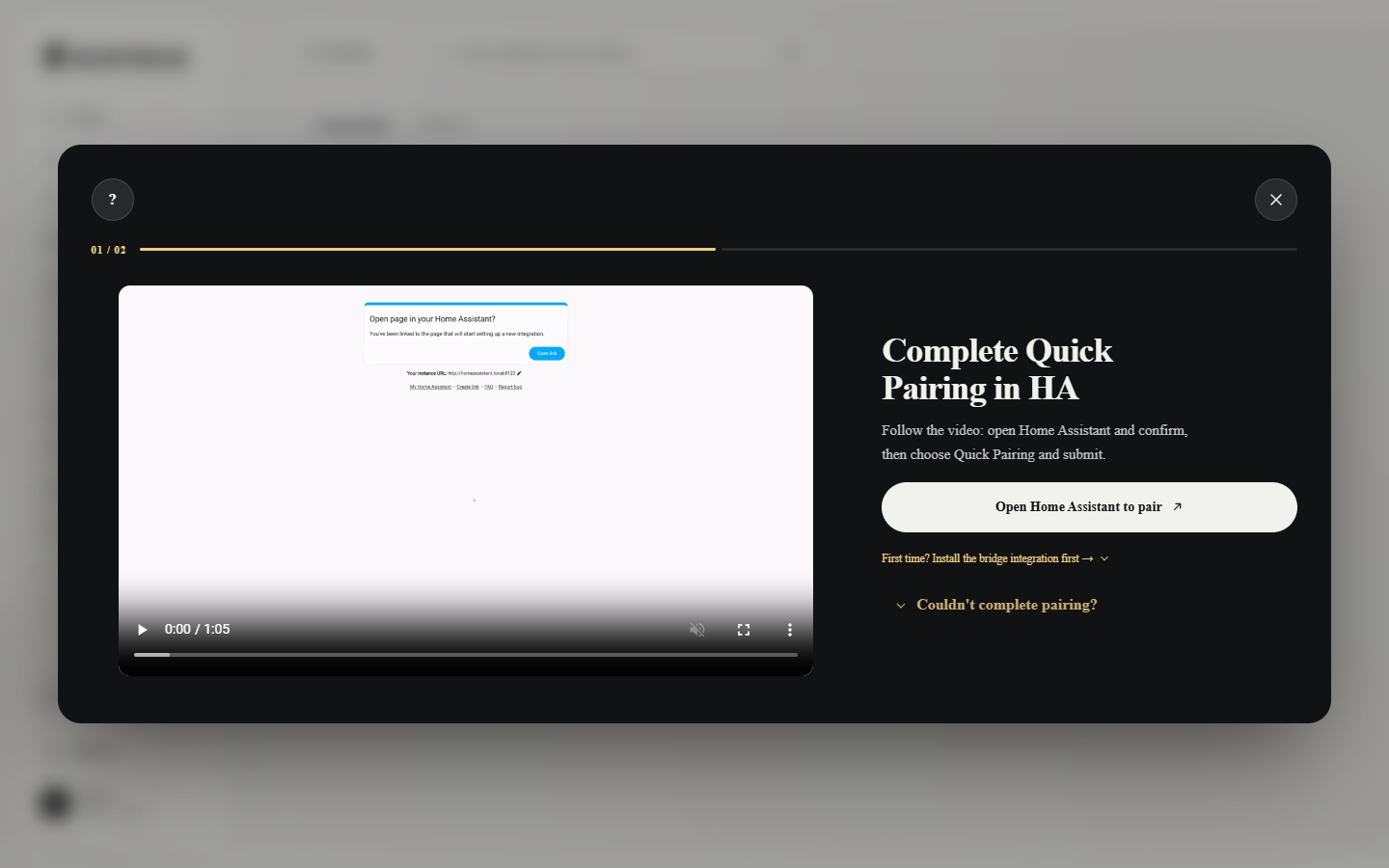
Section titled “Where to start”First, open the pairing page in Home Assistant. Starting from the seenzus app is recommended. If Home Assistant is already open, you can enter through its integration page instead.
Start from the seenzus app (recommended)
Section titled “Start from the seenzus app (recommended)”In seenzus, open Integrations → Add Source → Pair. The app opens the correct Home Assistant flow for you.
If Home Assistant is already open
Section titled “If Home Assistant is already open”In Home Assistant, open Settings → Devices & services → Add integration, search for seenzus MQTT Bridge, and confirm setup.
Once the seenzus MQTT Bridge setup page appears, continue below.
Pairing steps
Section titled “Pairing steps”Step 1: Choose Quick Pair
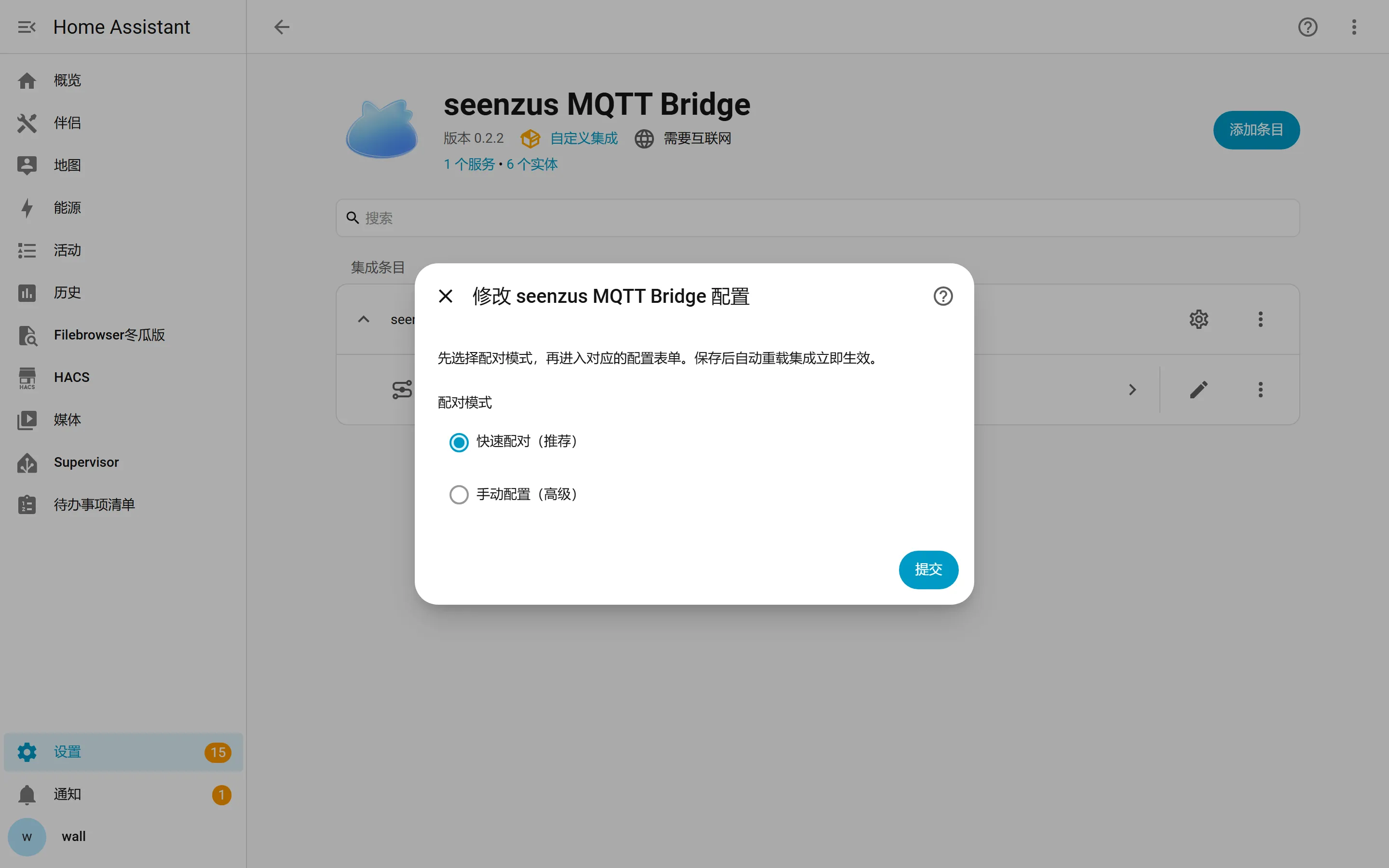
Section titled “Step 1: Choose Quick Pair”Choose Quick Pair (recommended) and continue. There is no MQTT Broker, port, username, or password to enter.
Step 2: Authorize in seenzus
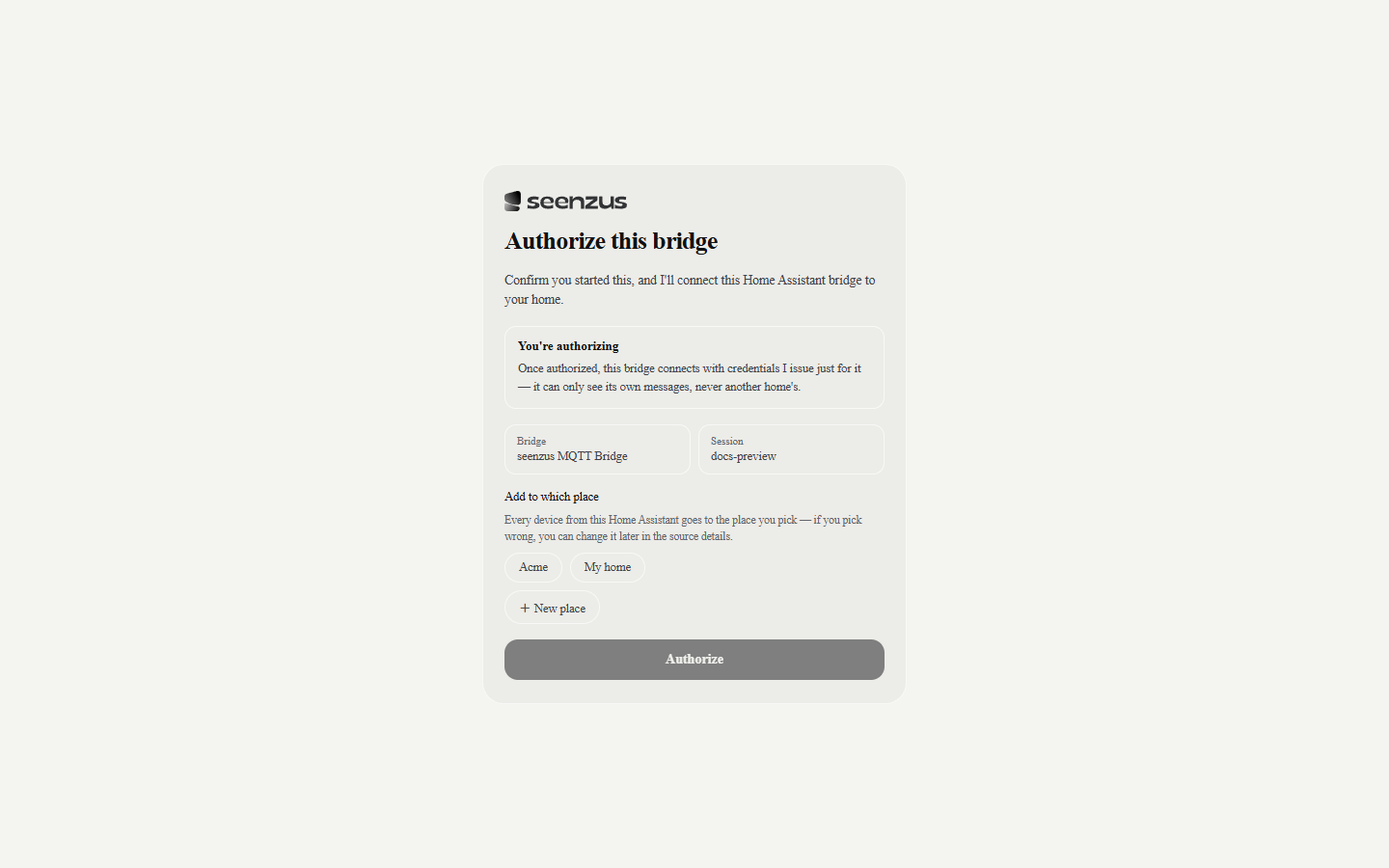
Section titled “Step 2: Authorize in seenzus”Choose the destination and place type, then approve access. The pairing session lasts only a few minutes; start again if it expires.
Step 3: Return to the matching Source
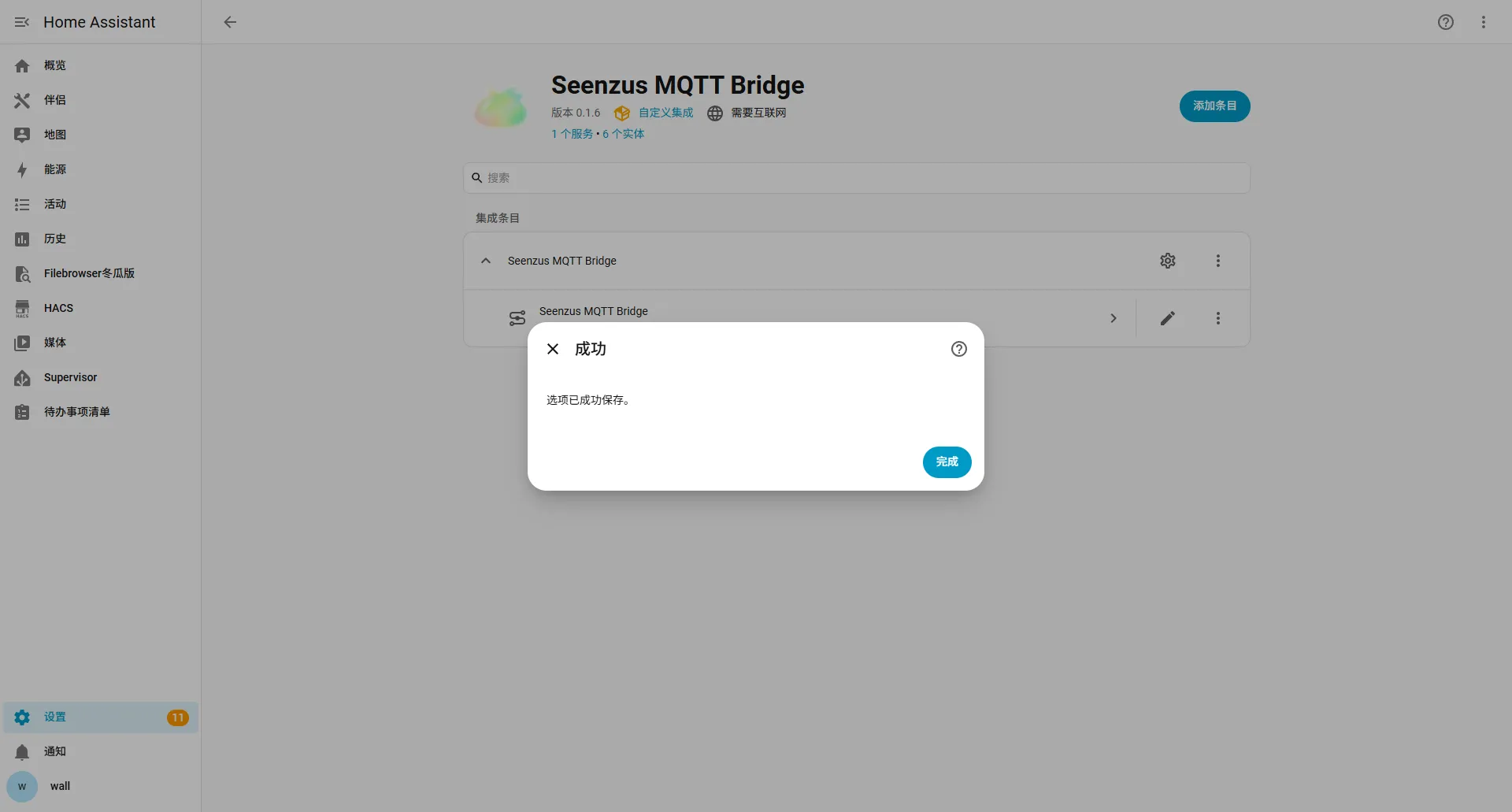
Section titled “Step 3: Return to the matching Source”Home Assistant creates the integration after authorization. No additional restart is required. Select Return to seenzus app on the success page or in the notification center, then open the Source you just created.
Pairing is complete when the Source shows Connected and devices or sync progress begin to appear.
Unable to start pairing
Section titled “Unable to start pairing”If seenzus does not open Home Assistant, sign in at:
http://homeassistant.local:8123Then open the local fallback URL:
http://homeassistant.local:8123/_my_redirect/config_flow_start?domain=seenzus_bridgeOnly find the HA IP and replace homeassistant.local when the default address fails.
Common problems
Section titled “Common problems”Pairing failed
Section titled “Pairing failed”Return to Install the Bridge, confirm that the Bridge downloaded, restart the whole Home Assistant instance, and try again.
The page did not return after authorization
Section titled “The page did not return after authorization”Return to the Home Assistant page you just used and check the result. If the integration was not created, start pairing again.
Connected but no devices appear
Section titled “Connected but no devices appear”Wait briefly and refresh the Source. If no devices appear, confirm that they work in Home Assistant, then follow sync troubleshooting.