

Connect Home Assistant with HACS Turbo
When complete, Home Assistant appears in seenzus as a connected source and automatically syncs devices and state.
Flow: Install HACS → Install Bridge → Authorize pairing → Return to seenzus
Step 1: Install HACS Turbo
Section titled “Step 1: Install HACS Turbo”If Companion is missing from the Home Assistant sidebar, Turbo is not available for this system. Use the HACS Official complete setup instead.
Open HACS management
Companion → Routine maintenance → HACS management → Manage
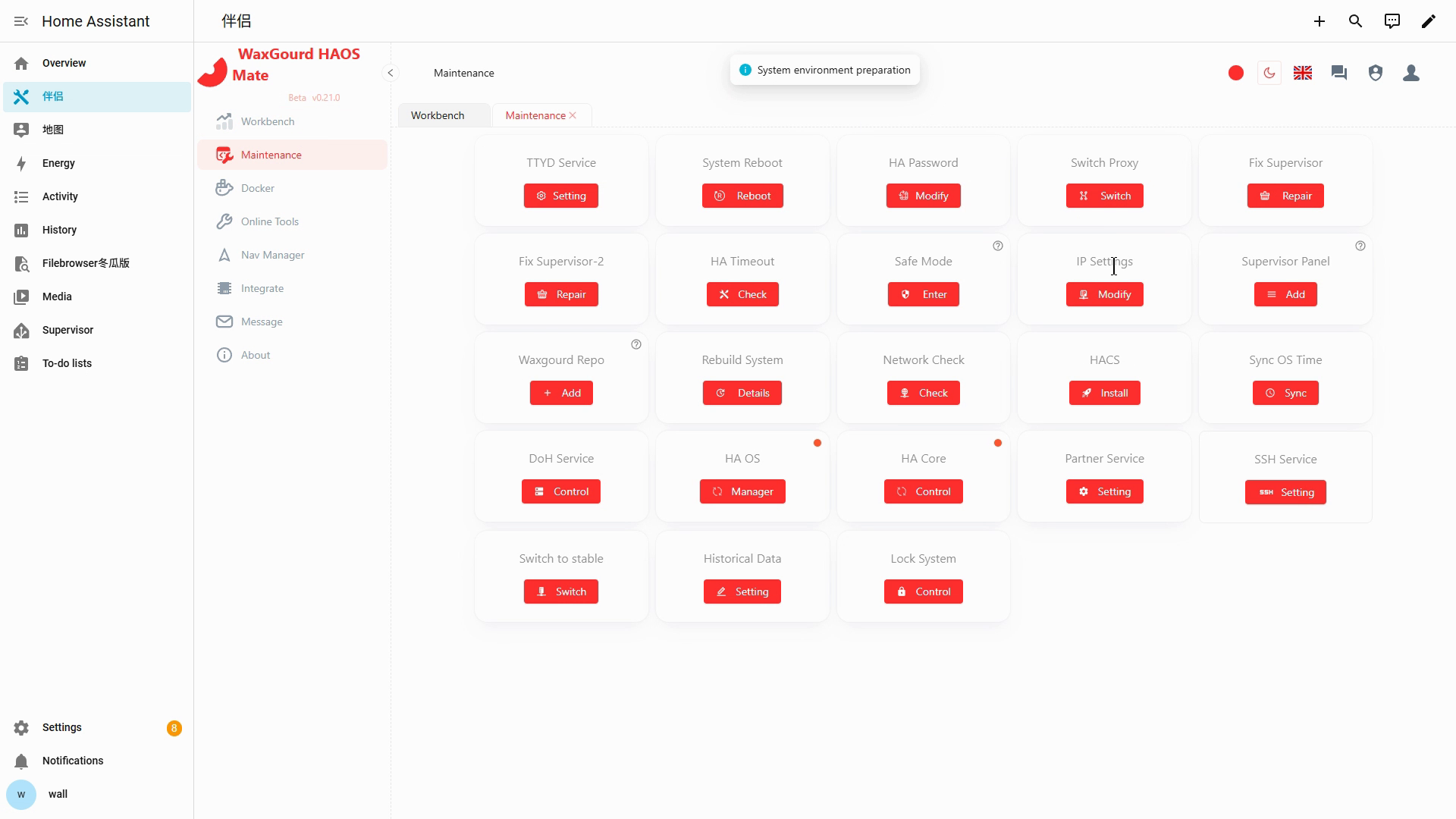
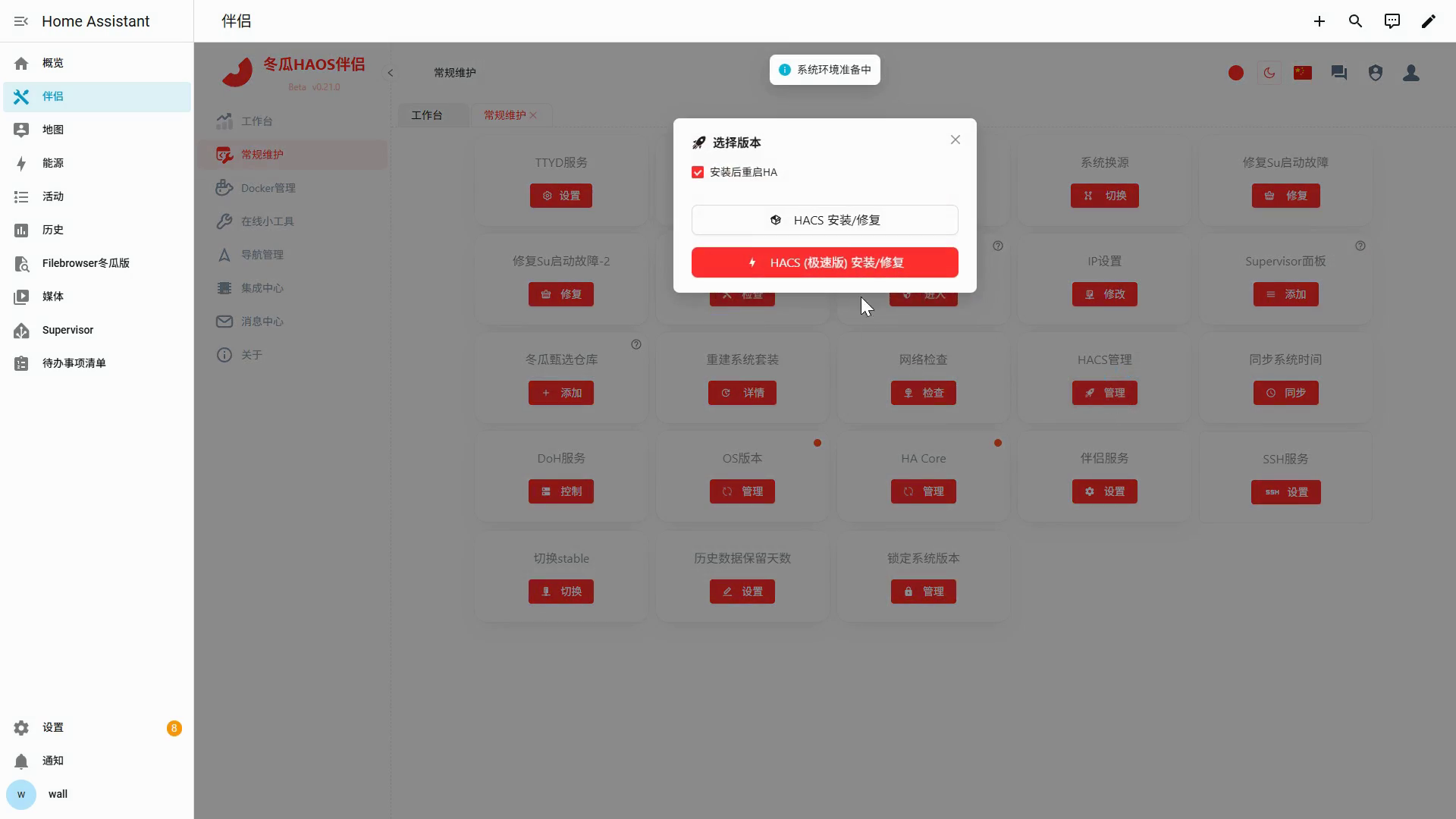
Install HACS Turbo
Select “Restart HA after installation” → choose “Install/repair HACS Turbo” → wait for Home Assistant to restart automatically
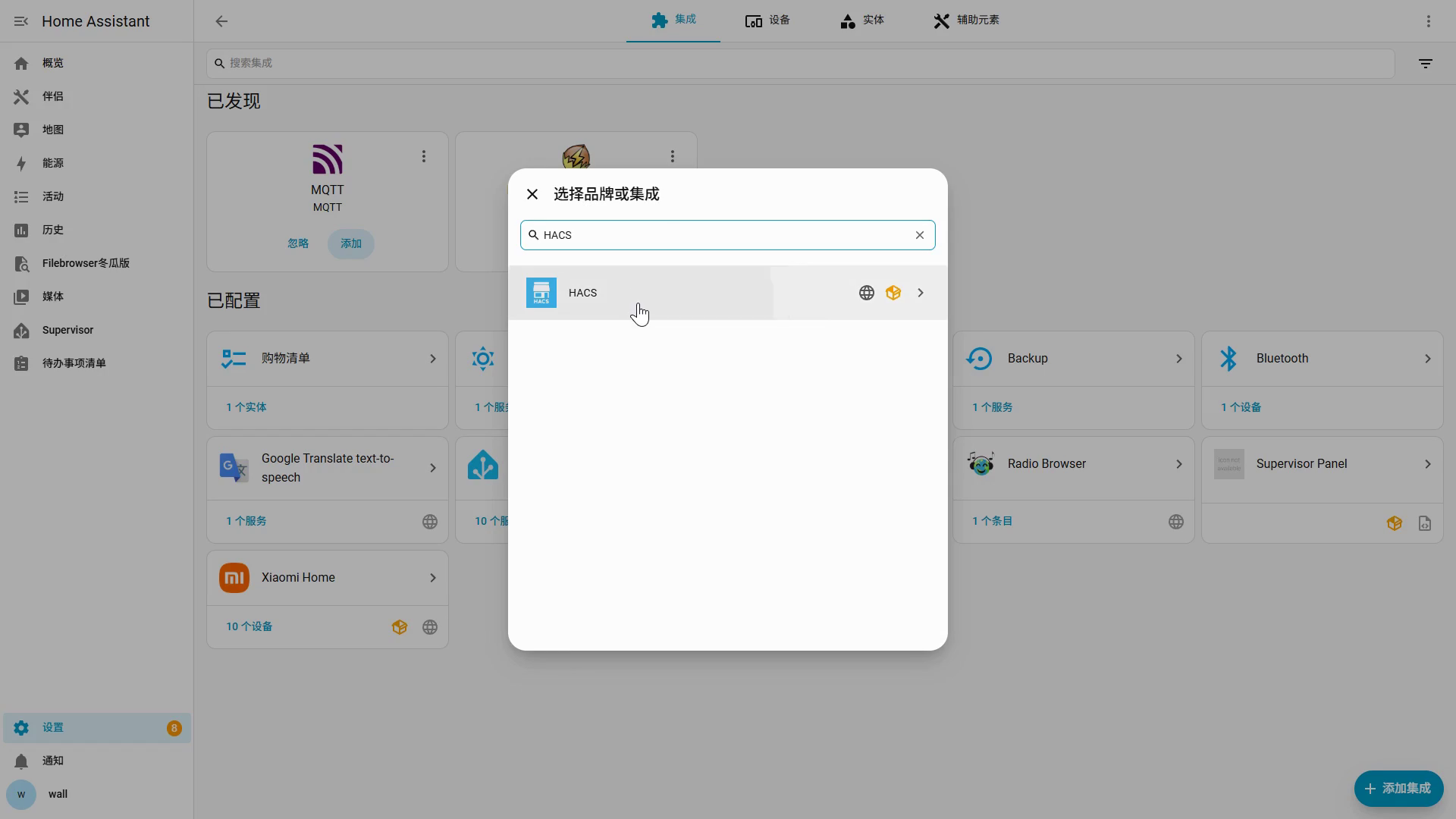
Add the HACS integration
Settings → Devices & services → Add integration → search for HACS → select HACS
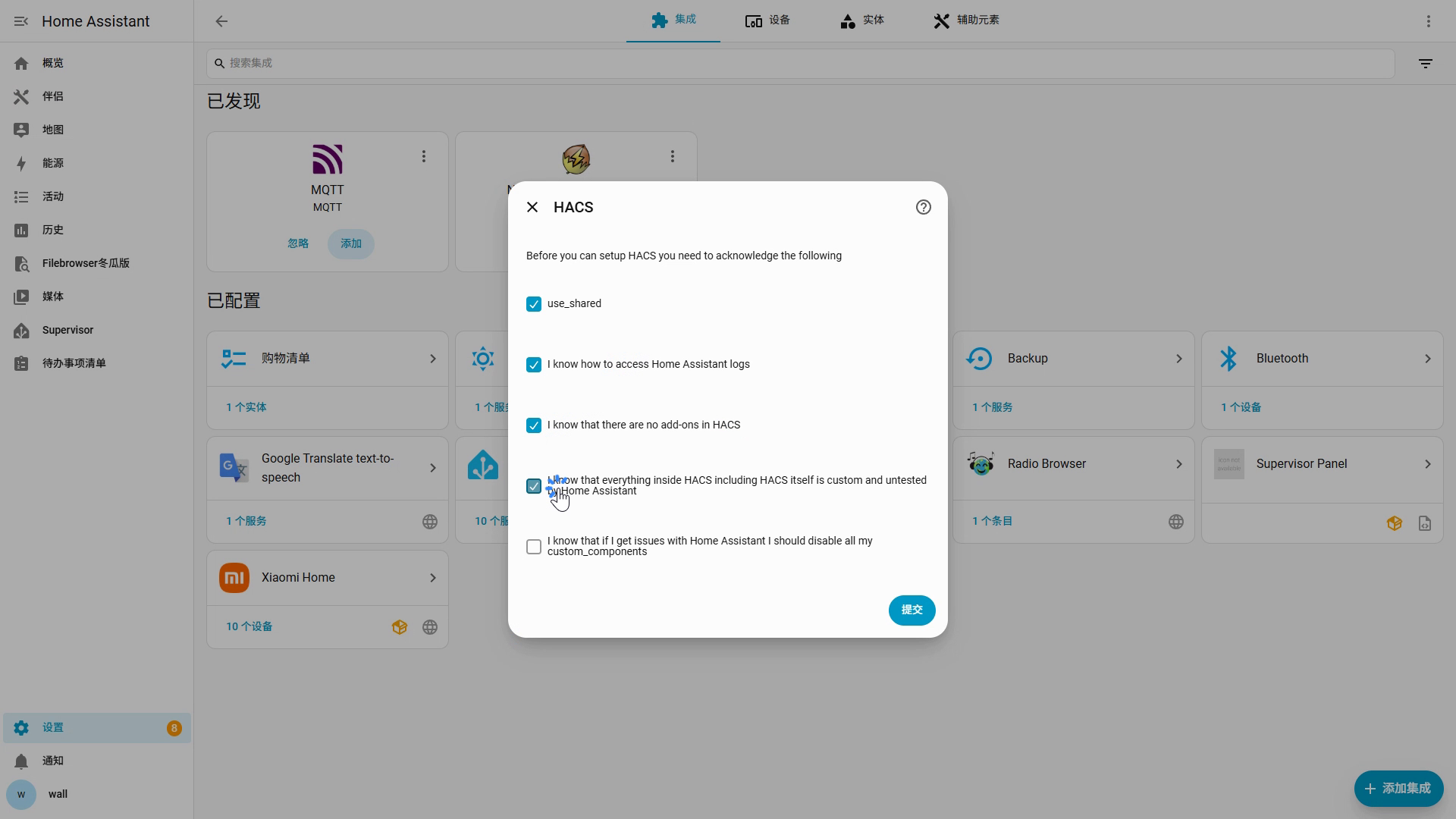
Confirm the HACS acknowledgements
Select every acknowledgement → Submit
Finish HACS setup
Assign areas if needed, or select “Skip and finish”; setup is complete when HACS appears in the sidebar
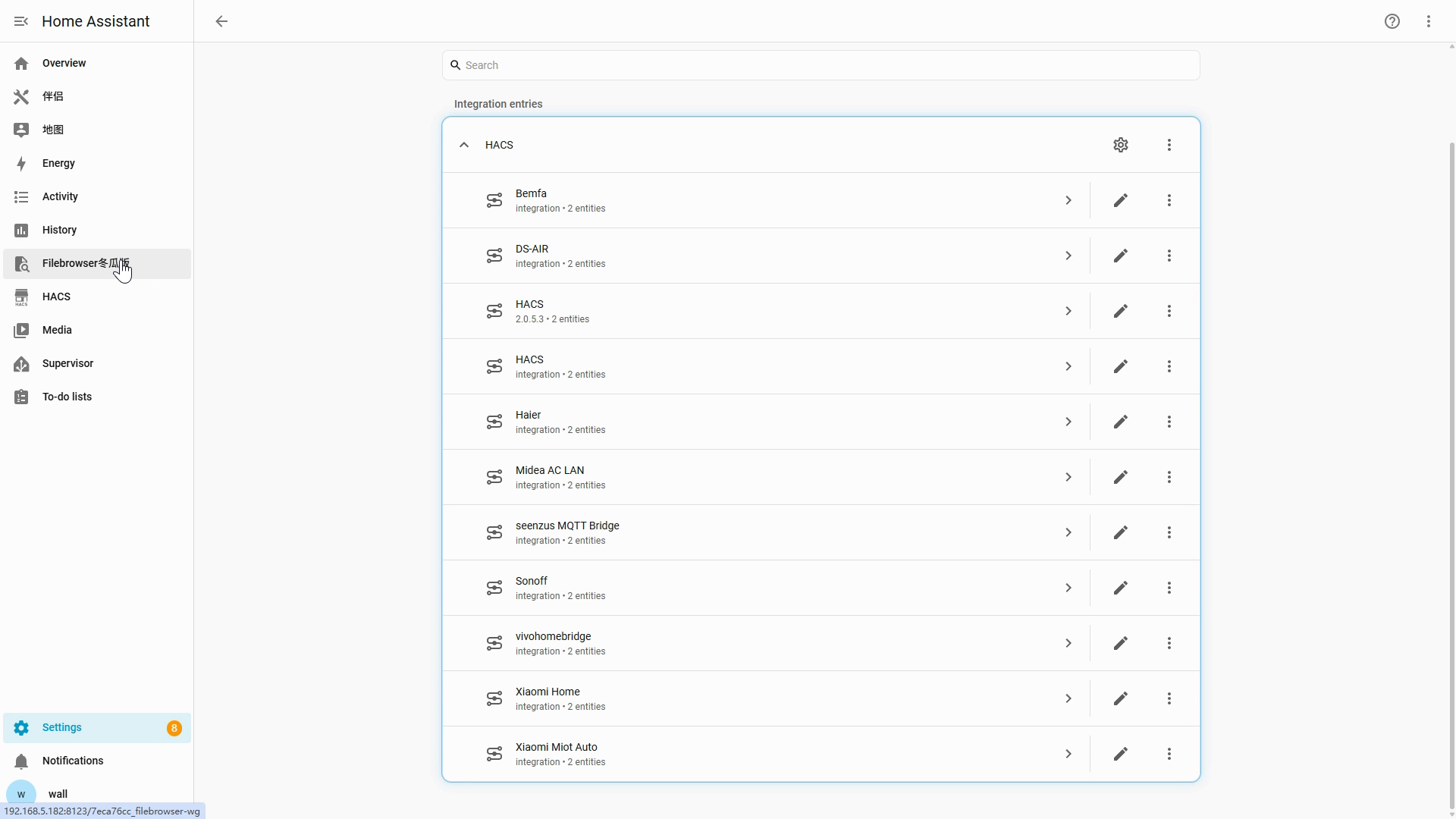
When complete, HACS appears in the Home Assistant sidebar.
Step 2: Install seenzus MQTT Bridge and complete pairing
Section titled “Step 2: Install seenzus MQTT Bridge and complete pairing”Copy this one-click URL and open it in your browser:
http://homeassistant.local:8123/_my_redirect/hacs_repository?owner=walllbf&repository=seenzus-mqtt-bridge&category=integrationOnly replace homeassistant.local with the HA IP if the default address does not open.
Open the one-click URL and confirm the repository
Open the URL above → Add → open HACS → Integrations → seenzus MQTT Bridge
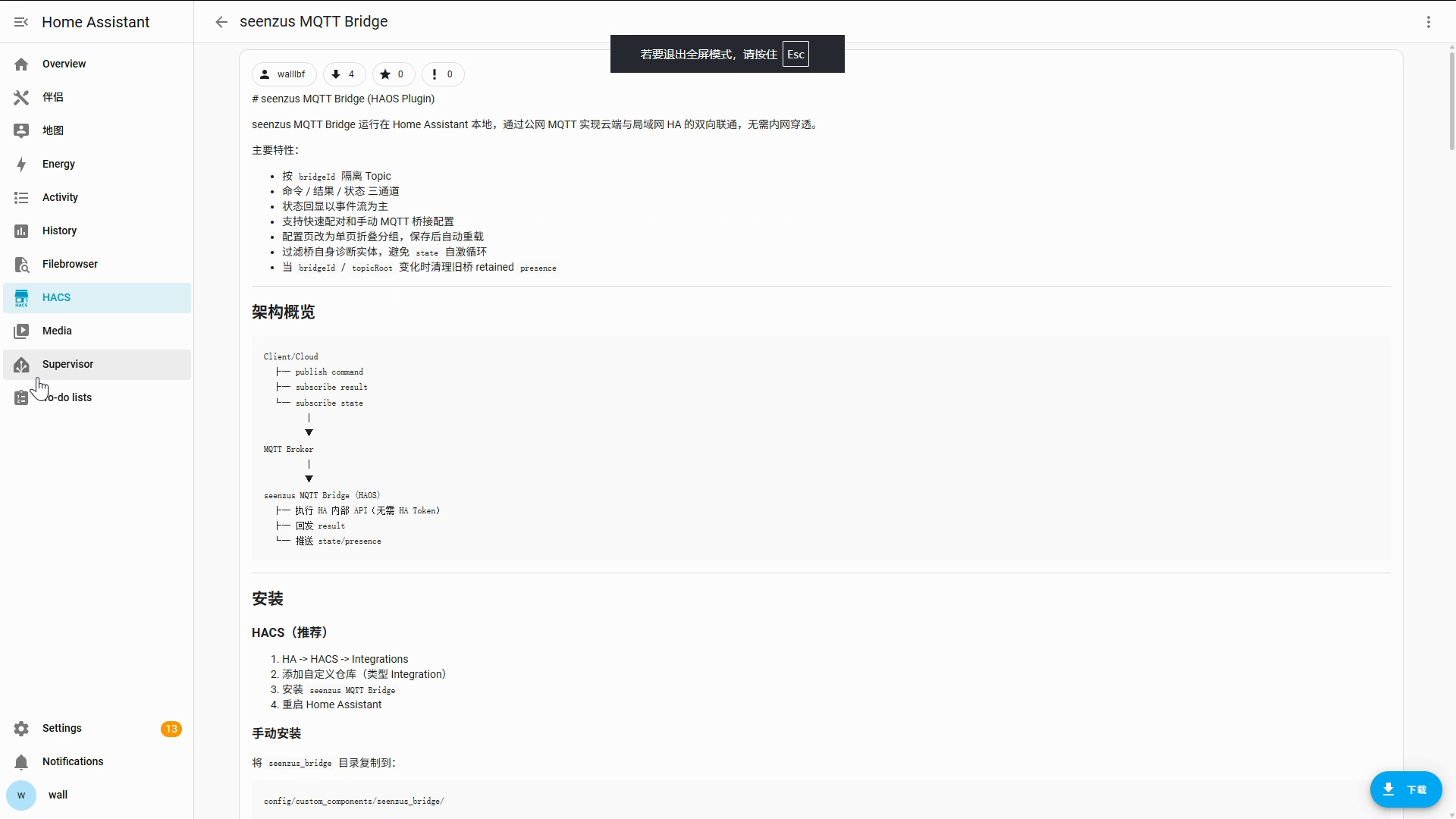
Download Bridge, then restart Home Assistant
Download → keep the defaults → Download → Settings → System → power menu → Restart Home Assistant
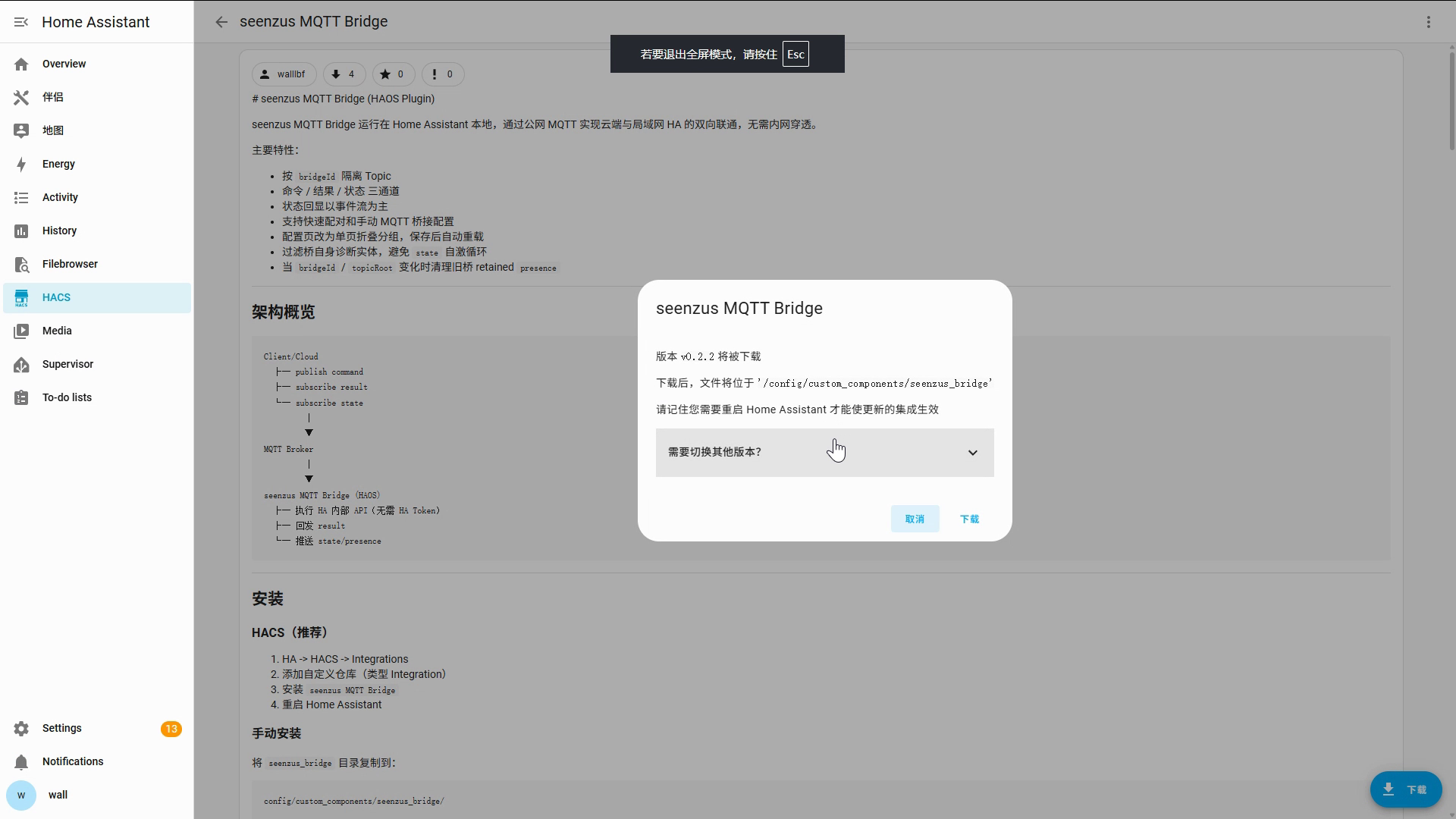
Choose Quick Pair in Home Assistant
Settings → Devices & services → Add integration → seenzus MQTT Bridge → Quick Pair → Submit
Approve access in seenzus
Choose a location → choose a place type → Confirm authorization
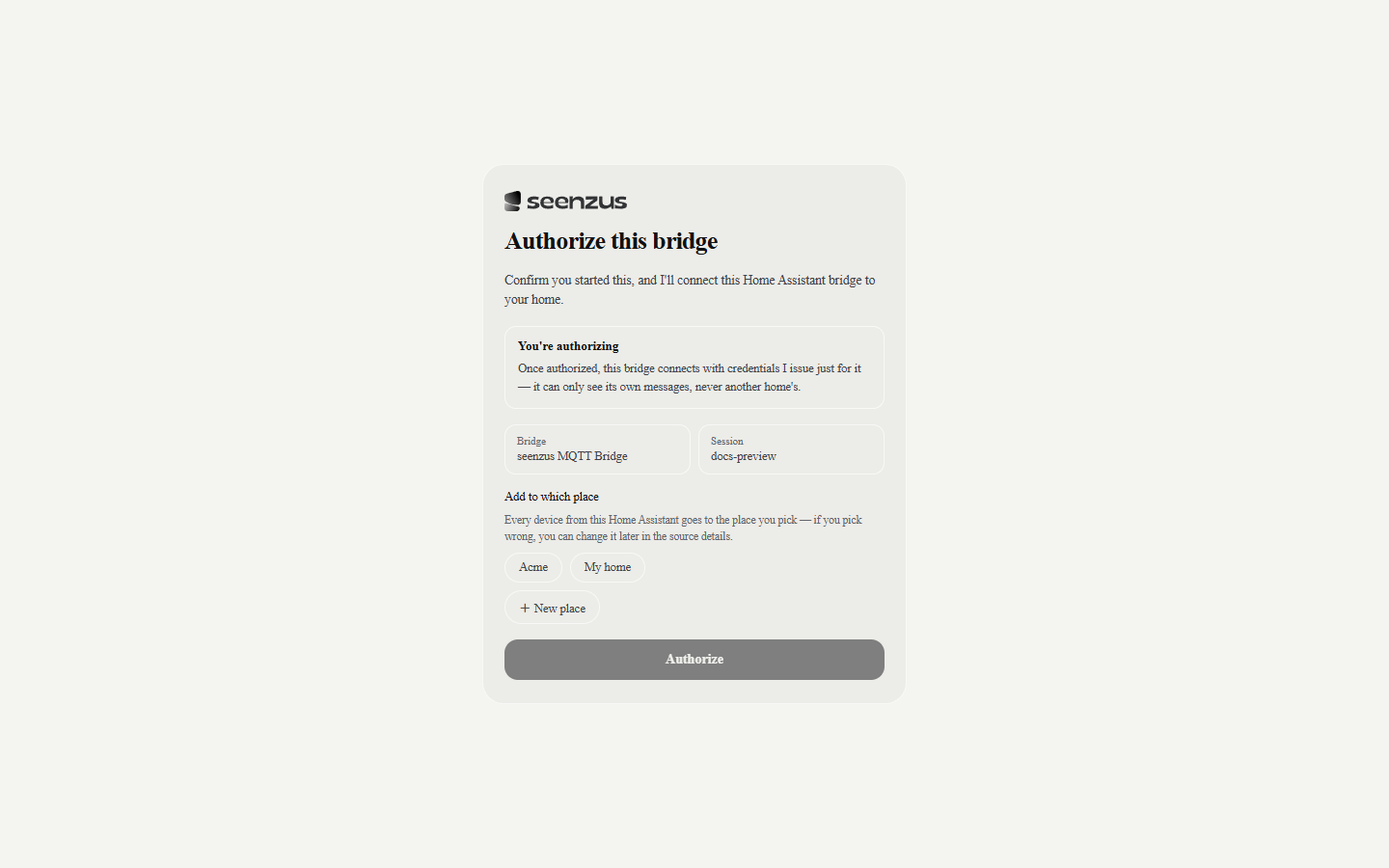
Return to seenzus from Home Assistant
First pairing
Home Assistant opens automatically after authorization → select Return to seenzus app
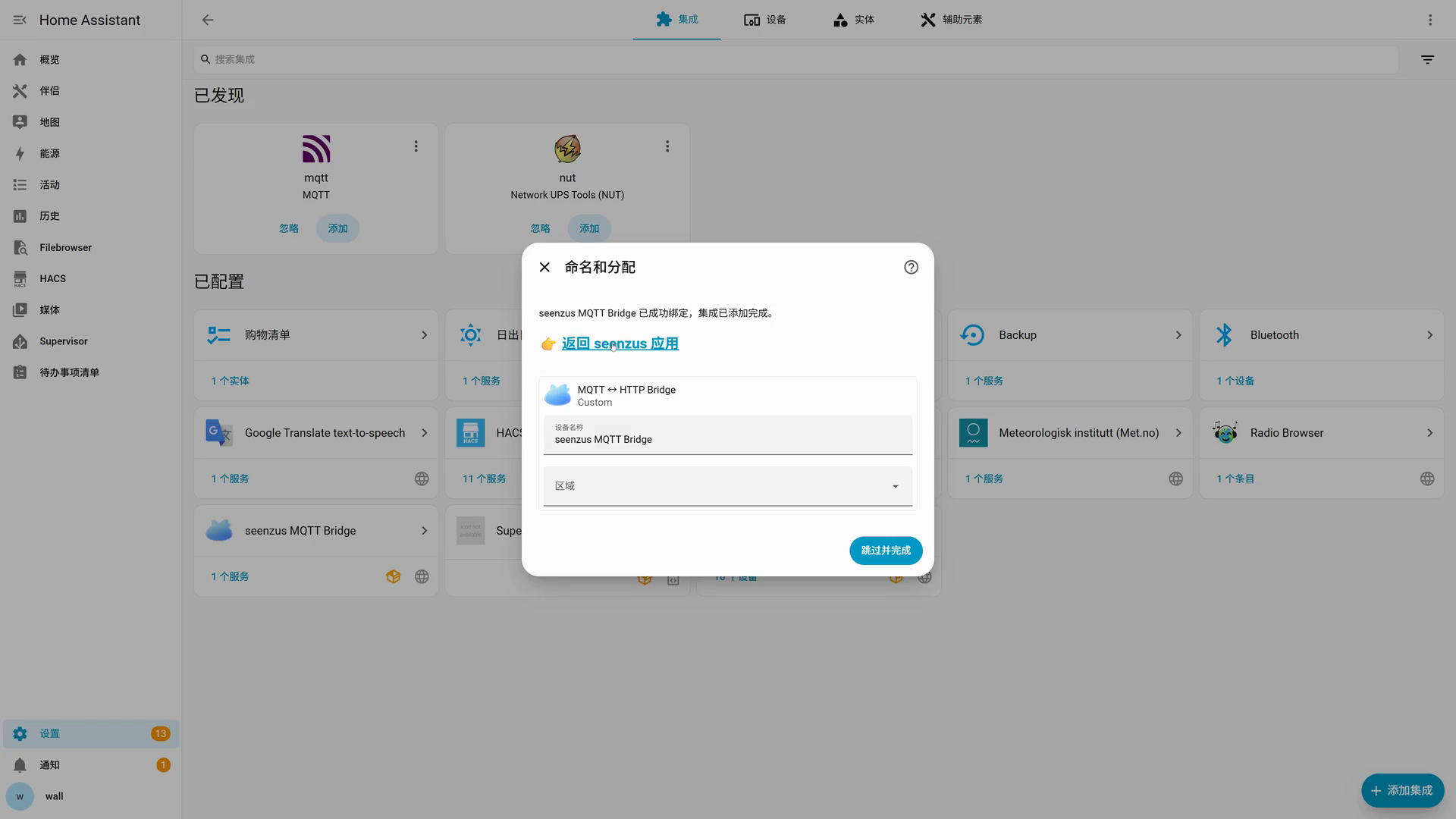
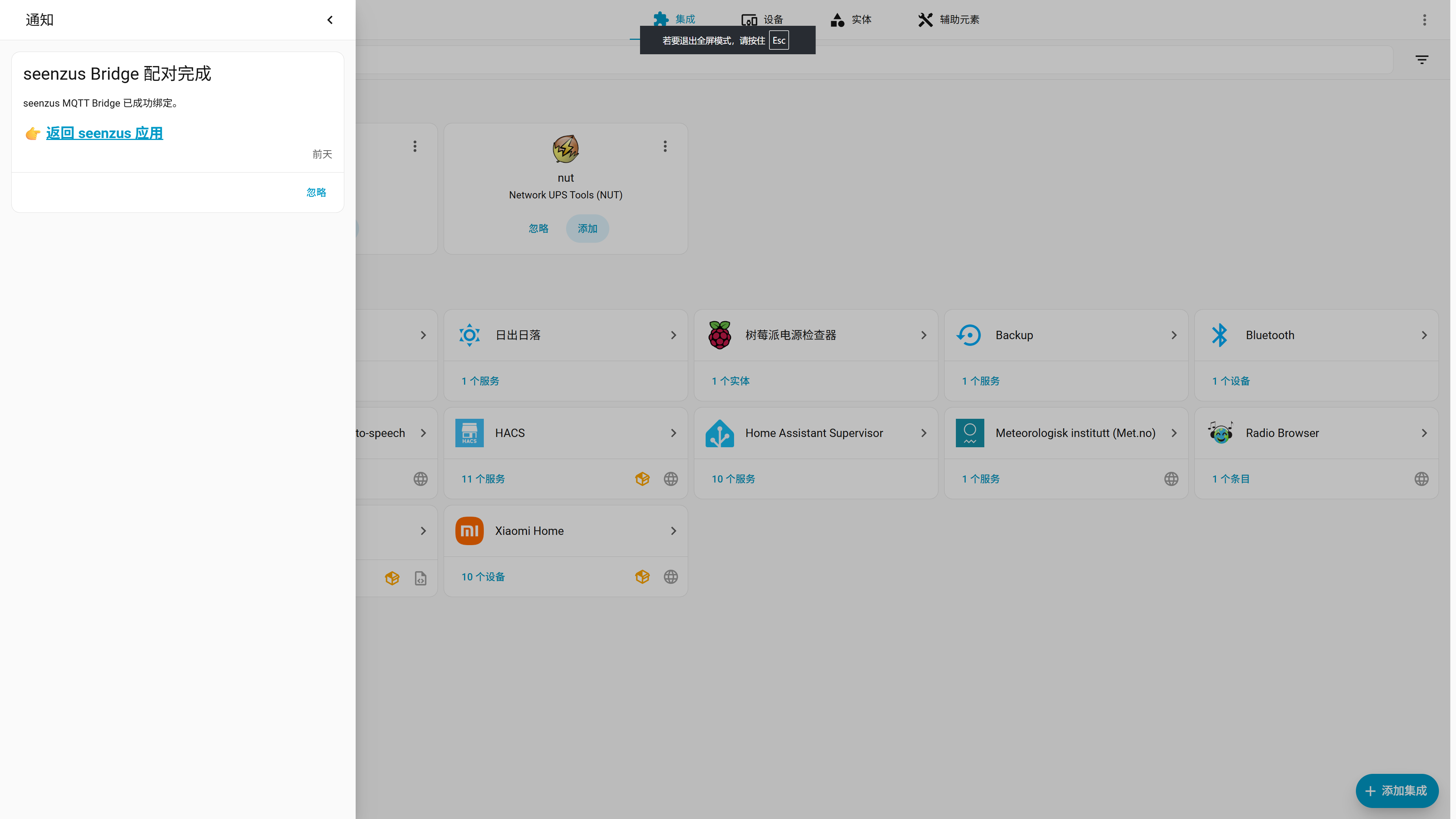
Later pairings, or if you selected Finish
Open Notifications in the Home Assistant sidebar → find the seenzus Bridge pairing-complete notification → select Return to seenzus app
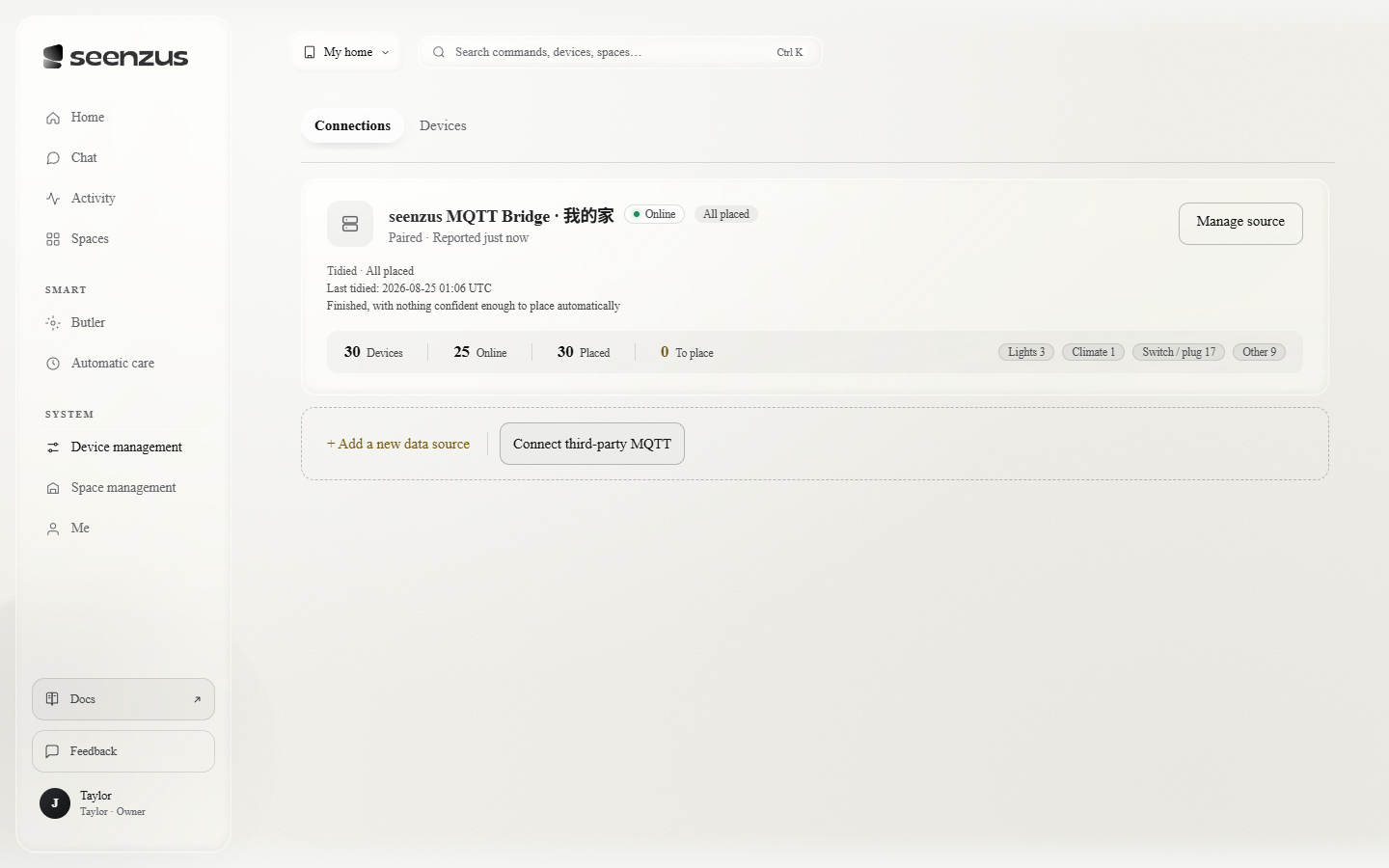
Open the matching Source
Integrations → open the Home Assistant Source you just created → review the synced devices
If the one-click URL fails, see other Bridge installation methods. For expired sessions or return-link problems, see Quick Pair troubleshooting.